Image Upload field
The Image Upload field type allows end- users to upload an image file attachment that is stored in the field. Pages that include the field will reference the images in an HTML <img> tag. An Image Upload field, offers the following properties to control the image size:
-
Field Properties
-
Field Label — (mandatory) is displayed on the left from the field on view, edit, and new record pages.
-
View Header — (optional) is used in headers of views and reports. If not specified, the Field Label is used.
-
View Width — (optional) is used to set width (in pixels or %) of columns in views and reports. If not specified, the browser calculates the width of columns automatically.
-
Default Size — The default size of the input field shown in forms (you can override this default as a page-level property using the page editor).
-
Width in Pixels — Default width of HTML text area in Pixels.
-
Height in Pixels — Default height of HTML text area in Pixels.
-
Alternative text — The image <alt> tag, which defines tooltip text to display when a user hovers their mouse over the image.
-
Maximum File Size — To limit storage space consumption, select a value to specify the maximum file size. For images over this size, Platform will automatically resize them on upload.
Maximum Image Size — Platform resizes images larger than the specified value automatically. For landscape images, the maximum size (in pixels ) applies to the width. For portrait images, the maximum size applies to the height. When Maximum Image Size is specified, Platform ignores the Maximum File Size property.
-
-
Advanced Field Properties — For more information, see Advanced field properties.
-
Integration Name — The integration name is used to reference this field via merge fields or with Platform APIs.
-
Field-Level Help — The Field-Level Help box allows you to define help text for the field that will appear in a popup when the user clicks the help icon next to the field.
Image Upload and Shared Image fields are responsive by default. Responsive image fields change size to fit the current screen size. You can specify that an image field is not responsive on a particular page; see Responsive user interface for details.
When a record view page has multiple Image Upload fields, Platform shows each field separately with its configured label.
Image display depends on the properties set in the page editor:
-
A responsive image without a specified Max Width appears as a thumbnail with a preview link. Click the link to open the image in a modal pop-up.
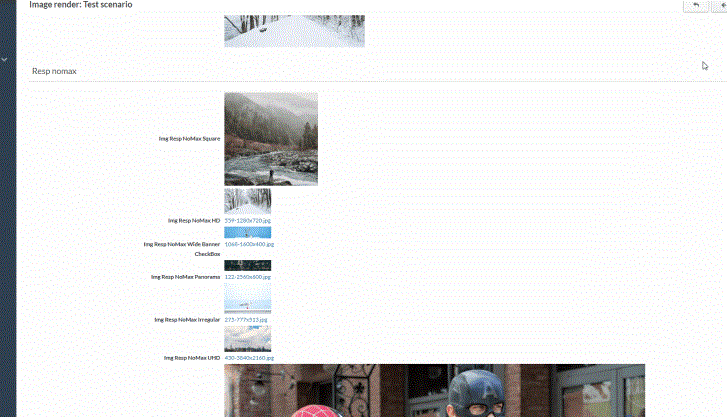
-
A responsive image with a specified Max Width appears as a normal image without a preview link.
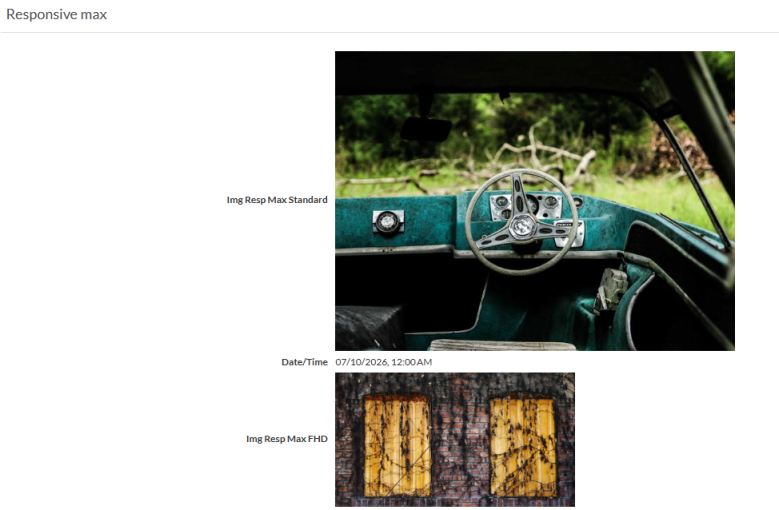
-
A non-responsive image appears as a normal image without a preview link.
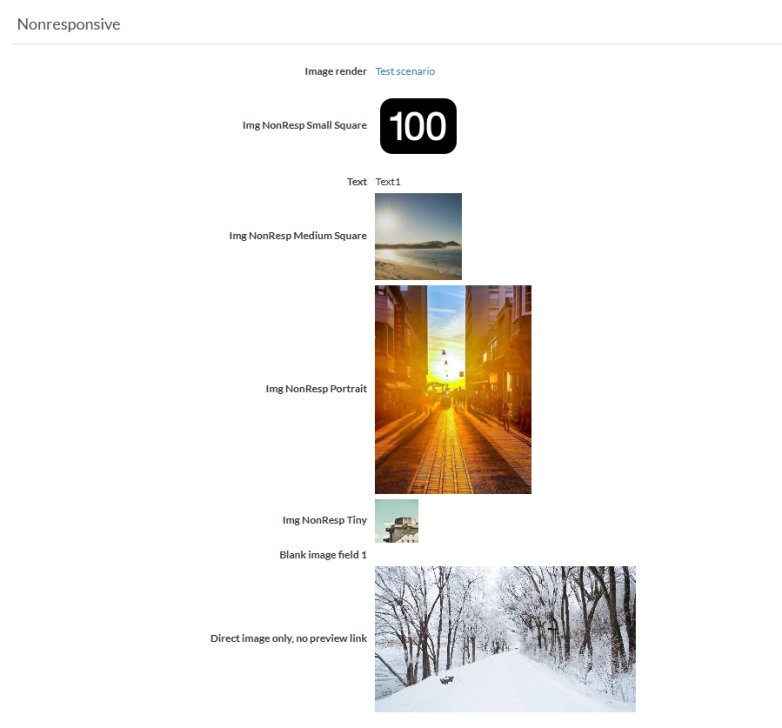
-
Image Upload fields without an image behave as empty fields do.