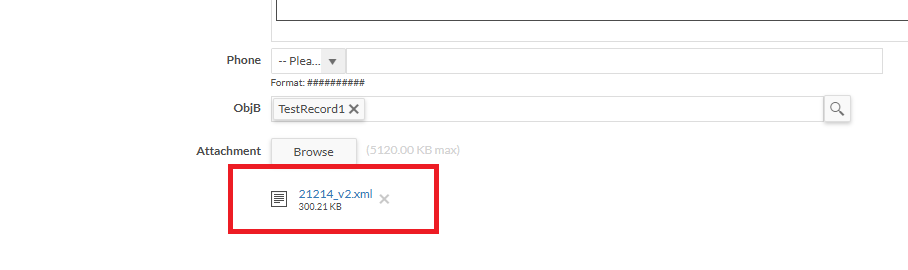
File Upload field
The File Upload field type allows users to upload a file attachment that is stored in this field. The file will be opened in a new browser window when clicked by the user.
The following properties can be defined while creating a File Upload field:
-
Field Properties
-
Field Label — (mandatory) is displayed on the left from the field on view, edit, and new record pages.
-
View Header — (optional) is used in headers of views and reports. If not specified, the Field Label is used.
-
View Width — (optional) is used to set width (in pixels or %) of columns in views and reports. If not specified, the browser calculates the width of columns automatically.
-
Default Size — The default size of the input field shown in forms (you can override this default as a page-level property using the page editor).
-
Maximum File Size — Specify a maximum size for files, from 128KB up to 2MB.
Check Make files publicly accessible if you want the content of uploaded file be accessible without checking for a valid login session and user's access rights. If you upload a different file to a field that is publicly accessible, the URL for that file does not change.
-
-
Advanced Field Properties — For more information, see Advanced field properties.
-
Integration Name — The integration name is used to reference this field via merge fields or with Platform APIs.
-
Field-Level Help — The Field-Level Help box allows you to define help text for the field that will appear in a popup when the user clicks the help icon next to the field.
If the IsPDFAnnotationEnabled field is set to true in the System Console > System > Shared
Properties > General > Add/Remove Features, the Enable PDF
Annotation checkbox assoicated with the File Upload field is
visible to enable the PDF editor function on the PDF files.
Removing an uploaded file from Grid Controls
To remove an uploaded file from the File Upload fields in Grid Controls.
-
Locate the attachment where the file is uploaded within a grid control.
-
Click the Remove (x) icon next to the uploaded file.
-
To confirm the removal, click Save on the page.
-
The file is permanently removed once the grid is saved.
-
To undo the removal, click Cancel instead.