BACKUP Migration Routing
A master administrator can migrate customer backup and restore processing from the legacy STORAGE flow to the dedicated BACKUP component. Migration is performed per customer and is reversible.
You must have Manage Backups permission and access to the root tenant to use BACKUP Migration Routing.
Before migrating customers
Before assigning customers to BACKUP:
-
Deploy and start at least one BACKUP component.
-
Make sure the Enable Backup Component property is enabled.
-
Verify that the BACKUP component is active.
-
Confirm that the selected customers do not have backup or restore jobs waiting or running in STORAGE.
Moving customers to BACKUP
Follow these steps to move customers to the BACKUP component:
-
Navigate to the Backup Routing Preferences page using the following path:
System Console > Control Panel > Backup Routing > Manage Routing
-
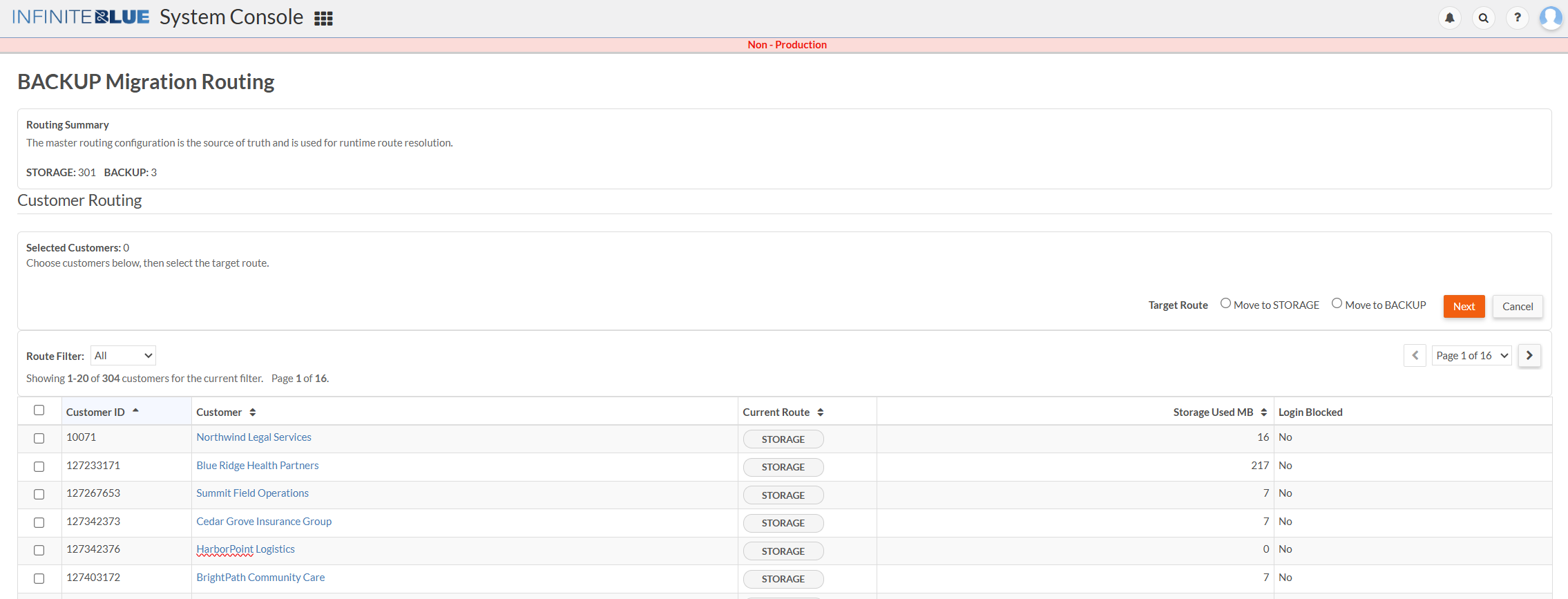
The BACKUP Migration Routing page is displayed..
-
From Route Filter, select All, STORAGE, or BACKUP.
-
Check the customers to update. The selections are retained when you move between pages or change the route filter.
-
Under Target Route, select Move to BACKUP and click Next.
-
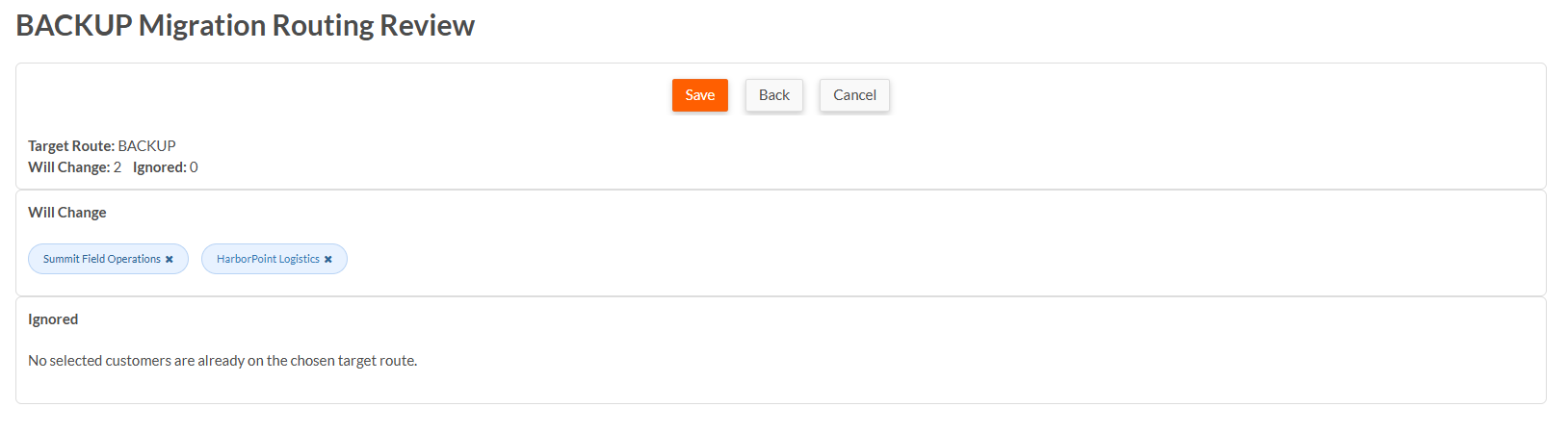
On the BACKUP Migration Routing Review page, review:
-
Customers that will change.
-
Customers already assigned to the selected route and therefore ignored.
-
Remove any customer that should not be updated.
Click Save.
-
Moving customers back to STORAGE
Follow the same procedure as Moving Customers to BACKUP, but select Move to STORAGE from the Target Route options.
Route precedence
When Enable Backup Component is disabled, all customers use STORAGE.
When Enable Backup Component is enabled:
-
Customers assigned to BACKUP use the BACKUP component.
-
Customers assigned to STORAGE use the legacy STORAGE flow.
-
Customers without a BACKUP assignment use STORAGE.