Backup and Restore
To protect yourself from accidental data losses, such as unintentionally deleted records, objects, or applications, by scheduling system backups.
Only master administrators can perform backups. The process of creating a backup file runs asynchronously and uses a queue. You receive an email when the backup is completed and ready to be downloaded. A full backup is in a compressed (ZIP) file that contains:
A full system backup is provided as a compressed ZIP file. Depending on the customer configuration, the backup can include:
-
Relational data, including Platform system and customer tables exported as CSV files.
-
Hosted files, file templates, images, and temporary files.
-
Encrypted-field and encrypted-file metadata.
-
Dedicated-table metadata.
-
Installed application information.
-
Published application definitions, history, and related image assets.
-
Files maintained in supported third-party cloud storage.
Platform does not include internal BACKUP component queue and runtime records in the customer backup.
The backup file might not include the uploaded file templates, images, and hosted files if your storage exceeds the specified limit. For example, if you have 500 MB of relational data and 800 MB of hosted files, then Platform creates a backup file with only 500 MB of relational data. It does not back up the hosted files.
Platform Private Cloud sets the backup data limit to 20 MB per customer tenant. As an administrator of the Platform master tenant, you can reset the 20 MB limit using the StorageUsageLimitForBkp property value in the Shared Properties file. The StorageUsageLimitForBkp property value specifies the backup data limit for all the customer tenants. If you want to specify a different backup data limit for a particular customer tenant, you must Edit the customer record and update the Max Backup File Storage (MB) field with the different backup data limit. This backup data limit specified in the customer record overrides the backup limit set in the Shared Properties.
To maintain performance, the Platform limits each tenant to one backup file per 24-hour period. Tenants can store up to ten monthly backups, with a maximum of seven recent backups retained.
For more information about Shared Properties and working with customer records, see Shared Properties and Working with customer records.
Backup
Platform processes only one system backup or restore job for a customer at a time within the customer’s current processing route. A backup request remains in the queue until the previous backup or restore operation for that customer is complete.
When processing is complete, Platform sends an email notification to the configured notification address. If no notification address is provided for a restore operation, Platform uses the default Platform sender address.
Follow these steps to create and download a backup file for your tenant:
-
Navigate to the Setup Home page from the application switcher.
-
In the Administration Setup area, click Backup.
-
To create a backup file, click Create New System Backup.
-
After the backup is complete, click Download to download the backup file to your local machine.
On Platform Private Cloud, an administrator on the master tenant can back up a customer tenant. See Working with customer records for more information.
Additionally, you can click View Backup Log to view all the data backup activities performed.
Restore
If you are using Platform Private Cloud, an administrator on the master tenant can restore data to a customer tenant from a backup file.
Follow these steps to restore a customer tenant:
-
Acquire a backup file from your customer.
-
Open the System Console application.
-
Select the Customers tab.
-
From the Customer List table, click the name of the customer tenant to restore.
-
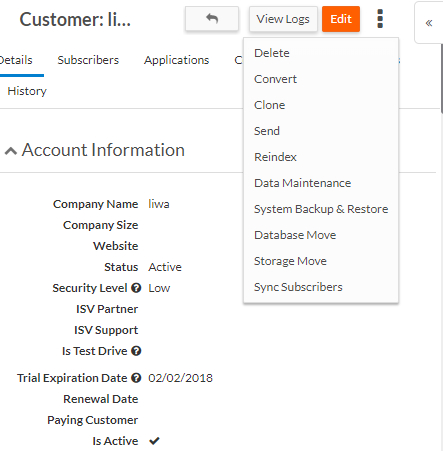
From the More Actions menu, select System Backup & Restore:
-
Click Upload System Backup.
-
Click Browse to select the required backup file.
-
Click Submit to restore data from the backup file. When the restore is complete, you will receive an email from Platform.
- To avoid compatibility issues, please ensure that the restore function is only used with the Platform version in which the backup was created.
- Likewise, do not install applications built on a higher platform version onto a lower version. This may result in unexpected behavior or functionality issues.
- The restore operation erases any changes made since the backup file was created.
- On completion of the restore process, make sure to synchronize the subscribers.
- A system restore is not an all-or-nothing transaction. Platform restores customer data incrementally and commits data as the restore progresses.
-
If a restore fails after processing has started, the tenant might contain partially restored data.
-
Platform blocks customer login while the restore is running. If the restore fails, the customer can remain blocked until an administrator reruns the restore or completes the required remediation.
-
Platform does not automatically return the tenant to its state before the failed restore.
-
Do not cancel a running restore unless you understand the potential effect on the customer tenant.
If you are an ISV and/or are using Platform Private Cloud, and you want to use third-party cloud services for storage, see Using a third-party cloud service for storage.