Assigning a role to a user
Each user has one role. You can assign a role to a user when creating a User record and you can edit an existing User record to change the role.
To assign a user's role:
-
Navigate to the Setup home page:
- From an application page, do one of the following:
- Select Setup Home from the Platform menu.
- Select Setup Home from the application switcher.
- From an application page, do one of the following:
- Click Users under Administrative Setup.
- Click Edit next to the user you want to edit.
The user edit page opens.
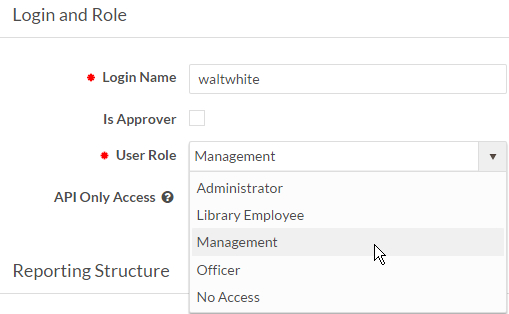
- In the Login and Role area, from the User
Role drop-down field, select a role. You can also select
No Access, in which case the user cannot access any
applications or components.
Note: By Default, a user with No Access role will not receive a welcome email.
- Click Save. The user now has the selected role.