Assigning a landing page to a role
You can assign a landing page to a role. The configured landing page includes the application page and the tab to open on that page. When a user with that role logs into Platform, the configured page opens with the configured tab selected.
To assign a landing page to a role:
-
Navigate to the Setup home page:
- From an application page, do one of the following:
- Select Setup Home from the Platform menu.
- Select Setup Home from the application switcher.
- From an application page, do one of the following:
- Select Roles.
- Select Pages next to the role to which
you want to assign a landing page.
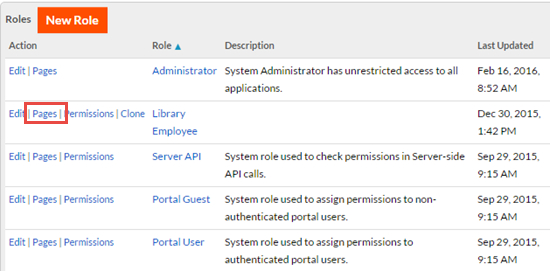 The Assign Page Versions page opens.
 - Select the Configure landing page for the role check box.
- From the Select Application drop-down list, select an application.
- From the Select Tab drop-down list,
select a tab.
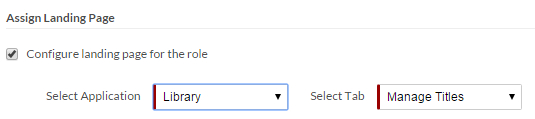
- Click Save.
When a user with that role logs in, the configured application will open with the configured tab selected.
A user can override the landing page configured for their role on the My Preferences.
Access control permissions are established at the role level. In the usual scenario, if a user holding a particular role tries to access pages without the necessary permissions, the application displays an error message through a growl notification. Subsequently, the user is also redirected to the Landing Page as configured in the User Preferences section.
In some instances, the user may be sent to an error page rather than the configured landing page. This error page is included with navigation panes which enable the user to navigate onto the desired page.
In the event that a landing page is not configured in the designated application or if the primary tab is inaccessible or invalid, the system will smoothly default to the first accessible application for the user or the left-most/first tab within the same application.