Selecting a theme for an application
An administrator can change the theme for an application. The application will use the selected theme for all users unless a user has selected a different theme for all applications (see Selecting a theme for a user).
To apply a theme to an application using the Theme Preview mode:
- Do one of the following:
- On an application page, click Theme
Preview in the application switcher:
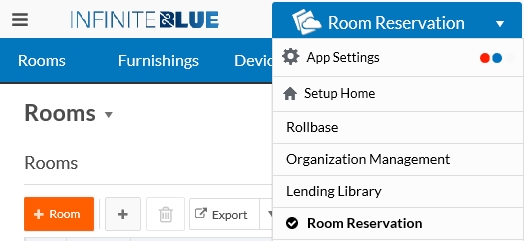
-
On the application's Setup Application page, click Theme Preview.
This option appears only if you have full permission to modify the application. Administrators without full modification access can view the assigned theme but cannot launch Theme Preview from the setup page for a partially locked installed application.
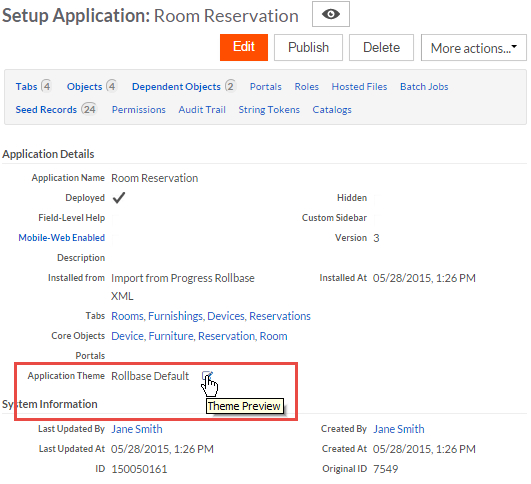 The application opens in the Theme Preview mode.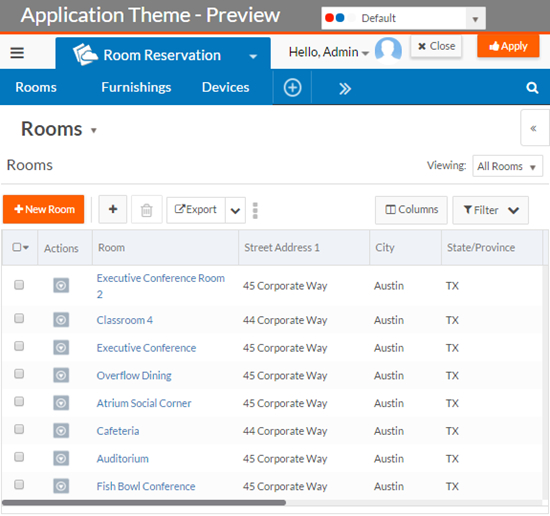
- On an application page, click Theme
Preview in the application switcher:
- Select a theme from the drop-down menu in the Application Theme - Preview bar. The appearance of the application page changes based on the theme you select.
- You can:
- Click Apply. The Set Application Theme dialog opens. Click OK to apply the new theme. The Theme Preview mode closes and the new theme is applied to the application.
- Click Close to exit the Theme Preview mode without changing the theme.