Field validation
On most field types you can define your own server-side validation logic by writing custom JavaScript that makes use of record-level field values, as well as related field values, to return custom error messages if required conditions are not met.
To access Field Validation, follow these steps:
-
Go to the Object Definition page containing the field to validate.
-
Navigate to the Fields section and locate the field that requires validation.
-
In Field Actions, click the Validation option.
-
Enter the validation expression defining the input rules.
-
Save the changes.
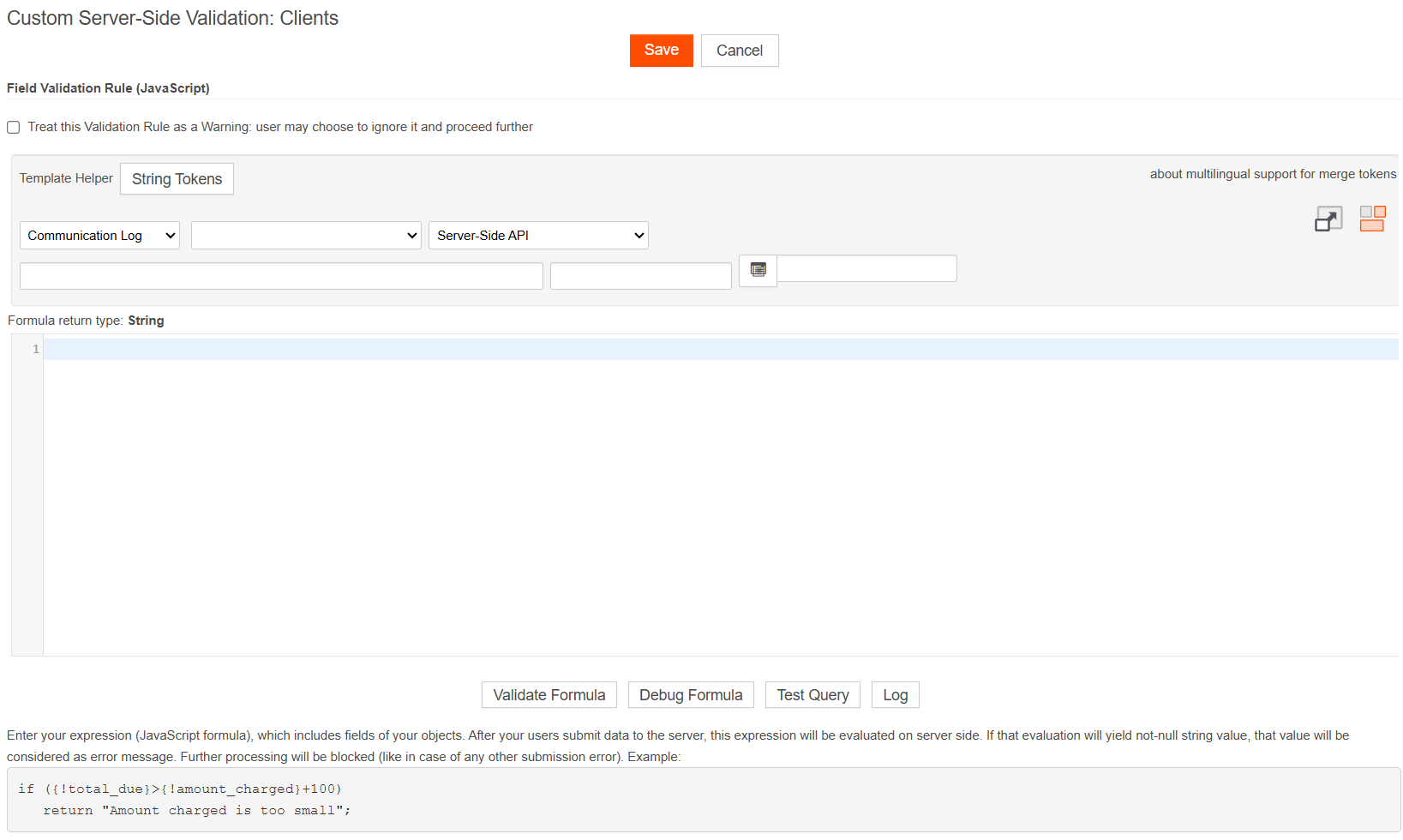
Field Validation
To define custom validation, enter a JavaScript expression in the text area. After your users submit data to the server, this expression will be evaluated. If that evaluation yields a string value, that value will be considered an error message and the user will be returned back to the data entry page with the error message displayed (all form data will be preserved).
For example, the following validation ensures that the value of an amount charged field is no more than 100 less than the value of a total due field:
if ({!total_due}>{!amount_charged}+100) {
   return "The amount charged is too small. Please make sure the amount charged is no more than 100 less than the total due.";
   }
In some situations when a record is edited, you may want to access the value of a field before it was updated by the user, as well as the value after it was updated. To do this, use the #before suffix in the merge field. For example:
if ({!balance#before}-{!balance}<100) {
   return "The balance change is too large. Please make sure the new balance is no more than 100 less than the initial balance.";
   }
When the user is saving data (for a new or an existing record) and the validation formula returns an error message, the saving process cannot continue: the user is redirected back to the new or edit page and an error message is displayed below the field.

This behavior changes if you select Treat this Validation Rule as a Warning. At runtime, users can select Ignore Warning and continue saving the record even if the validation rule returns a warning message.
